Introduction:
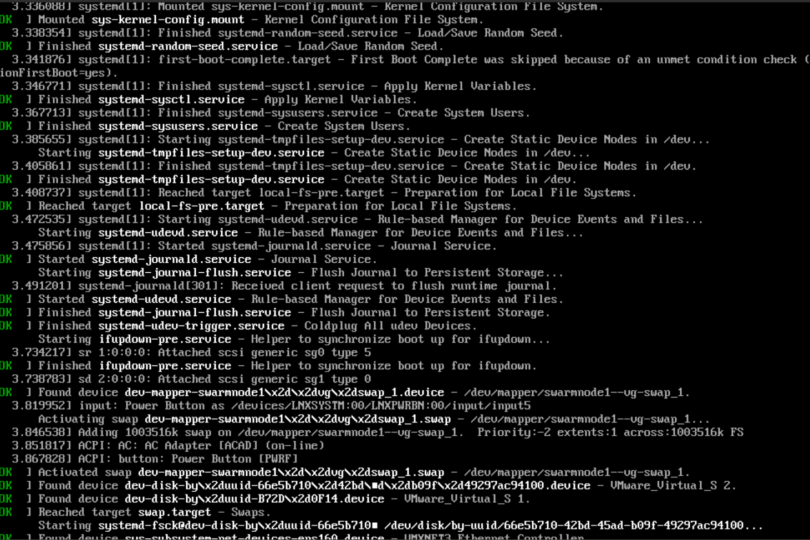
Debian 12, affectionately dubbed ‘Bookworm,’ has arrived with a host of new features and improvements that continue to solidify its reputation as a reliable and versatile Linux distribution. Among the array of enhancements, Debian 12 offers users the ability to delve deeper into the inner workings of their system by enabling boot verbose mode. This insightful feature displays comprehensive boot messages during startup, serving as a valuable tool for troubleshooting and fostering a better understanding of the system’s initialization process. This blog post will act as your guide to unlocking the potential of boot verbose mode in Debian 12.
Enabling Boot Verbose Mode:
Enabling Boot Verbose Mode: Boot verbose mode, also known as “quiet mode off,” provides users with a comprehensive view of the system’s boot process. This can be invaluable for troubleshooting issues during startup or simply gaining a deeper understanding of how the system initializes. Here’s a step-by-step guide to enabling boot verbose mode in Debian 12.
Step 1: Open the Grub Configuration File
To enable boot verbose mode, we’ll need to edit the GRUB bootloader configuration. Open a terminal and execute the following command:
user@node1:~$ sudo nano /etc/default/grub
[sudo] password for username: ********
You will be prompted for your password. Enter it to proceed.
Step 2: Edit the Grub Configuration
Once the Nano text editor opens and loads the GRUB configuration file, locate the line that contains the “GRUB_CMDLINE_LINUX_DEFAULT” parameter. By default, this line might look something like:
GRUB_CMDLINE_LINUX_DEFAULT="quiet"
Modify the line to remove the “quiet” parameter, which suppresses boot messages:
GRUB_CMDLINE_LINUX_DEFAULT=""
Feel free to keep any other parameters that you might have configured for your system.
Step 3: Save the File
After making the necessary changes, save the file by pressing Ctrl+O, and then press Enter. To exit Nano, press Ctrl+X.
Step 4: Update Grub
With the GRUB configuration modified, it’s time to update the bootloader to apply the changes. Run the following command:
user@node1:~$ sudo update-grub
Generating grub configuration file ...
Found linux image: /boot/vmlinuz-6.1.0-11-amd64
Found initrd image: /boot/initrd.img-6.1.0-11-amd64
Found linux image: /boot/vmlinuz-6.1.0-10-amd64
Found initrd image: /boot/initrd.img-6.1.0-10-amd64
Warning: os-prober will not be executed to detect other bootable partitions.
Systems on them will not be added to the GRUB boot configuration.
Check GRUB_DISABLE_OS_PROBER documentation entry.
Adding boot menu entry for UEFI Firmware Settings ...
done
user@node1:~$
This command scans your system for available kernels and generates a new GRUB configuration file with the updated settings.
Step 5: Reboot
After successfully updating GRUB, reboot your system:
sudo reboot
During the next boot, you’ll notice that the boot messages are displayed in all their verbose glory. This can be especially helpful if you encounter any issues during startup, as you’ll have a detailed log to assist in diagnosing the problem.
Conclusion:
Enabling boot verbose mode in Debian 12 ‘Bookworm’ is a simple yet powerful way to gain insights into the system’s boot process. Whether you’re a seasoned Linux user or just getting started, having access to detailed boot messages can be invaluable for troubleshooting and understanding your system better. By following the steps outlined in this guide, you’ll be well on your way to harnessing the benefits of boot verbose mode.